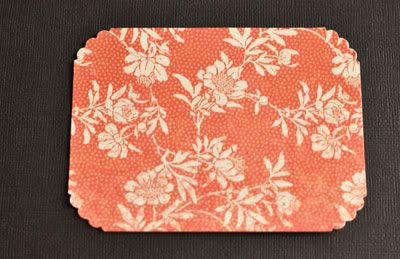
I love my punches and I am always trying to learn and find uses for my punches. At a crop I learned how to use a corner punch to make a medallion-like shape. It will have to wait, since I don't own any corner punch, but I thought of a way to use a scalloped circle punch as a corner punch.
You will need a scalloped circle punch and a rectangular piece of paper. My punch is a 5cm (2 inch) Woodware punch.
Turn the punch upside down, and slide one corner inside the punch.
Repeat for each corner and you'll get this:
Showing posts with label tutorial. Show all posts
Wednesday, May 16, 2012
Monday, July 18, 2011
Learning as I go: Part 5 - Flower Makeover
There's tons of paper flower making tutorials in the web and here is my own twist.
I am taking the lazy approach and making flowers out of existing ones! If you are cardmaking or scrapbooking as long as I am, you must have gone through a Prima daisies shopping frenzy. Do you remember the pretty flowers that came in pretty glass jars? Like these ones?
I used plenty of them, but still have lots left and hardly use them anymore because while I still love them, they look a bit... let's say... out of fashion. So I decide to try a flower makeover and here are some of my results:
To make the pink chrysanthemum, I used 2 dark daisies, 3 pink ones and a smaller yellow one.
I glued one dark one on top of the other one.
Then I folded the pink ones in the middle, back to back. I put a dot of glue so that they'd stay that way.
Then folded them again, and glued.
Now put glue in the center of the dark one.
Now cover the dark daisies with the folded pink ones:
Now scrunch the yellow daisy like this. Back to back, so that the petal tips go inwards.
Glue it in the middle and you get this.
For the other two flowers I used a different shape and coloured them with Promakers. I didn't record all the steps but it follows the same idea of the first tutorial.
For the yellow flower, I coloured the centres with a darker shade.
And got this:
The blue one has a fuller centre; I used two yellow daisies.
Here's a second tutorial, very similar to the previous one. This time I wanted to make a rose.
The steps:
The "ingredients":
Pop a bit of wet glue on the back of two of dark flowers:
Fold.
A bit of glue on a third flower.
Place one of the folded ones over it.
Then the other one, on the other half.
Put a bit of glue on the back of the petals of the remaining two.
Scrunch the small one up, petals against petals.
Wrap the other one around the first one.
Glue it in the center of the other ones and you're done!
If you get to make a flower using the tutorial let me know, I'll love to see your creations!
I am taking the lazy approach and making flowers out of existing ones! If you are cardmaking or scrapbooking as long as I am, you must have gone through a Prima daisies shopping frenzy. Do you remember the pretty flowers that came in pretty glass jars? Like these ones?
I used plenty of them, but still have lots left and hardly use them anymore because while I still love them, they look a bit... let's say... out of fashion. So I decide to try a flower makeover and here are some of my results:
To make the pink chrysanthemum, I used 2 dark daisies, 3 pink ones and a smaller yellow one.
I glued one dark one on top of the other one.
Then I folded the pink ones in the middle, back to back. I put a dot of glue so that they'd stay that way.
Then folded them again, and glued.
Now put glue in the center of the dark one.
Now cover the dark daisies with the folded pink ones:
Now scrunch the yellow daisy like this. Back to back, so that the petal tips go inwards.
Glue it in the middle and you get this.
For the other two flowers I used a different shape and coloured them with Promakers. I didn't record all the steps but it follows the same idea of the first tutorial.
For the yellow flower, I coloured the centres with a darker shade.
And got this:
The blue one has a fuller centre; I used two yellow daisies.
Here's a second tutorial, very similar to the previous one. This time I wanted to make a rose.
The steps:
The "ingredients":
Pop a bit of wet glue on the back of two of dark flowers:
Fold.
A bit of glue on a third flower.
Place one of the folded ones over it.
Then the other one, on the other half.
Put a bit of glue on the back of the petals of the remaining two.
Scrunch the small one up, petals against petals.
Wrap the other one around the first one.
Glue it in the center of the other ones and you're done!
If you get to make a flower using the tutorial let me know, I'll love to see your creations!
Monday, June 13, 2011
Learning as I go: Part 4 - digitally colouring the background
I think an image really pops when you add a little "halo" around it, like Jackie did in this card and Wendy did here.
I am sure both got their effect using their markers and watercolours, but here I am going to show you how to get the same effect digitally.It is a handy technique when the image has lots of details which make it hard to colour by hand.
Don't be put off by the number of steps. Probably you already know how to do most of these things but I wanted to make it as detailed as possible.
I used PSE (Photoshop Elements) but the same idea would work in any other graphic editing software which support layers such as Paint Shop Pro.
First you have to know a bit about PNG files and layers. Excluding some of my earlier images, all others are provided in PGN format as well as in JPEG. For this tutorial you will need the PNG file.
As for layers, think of layers as sheets of paper, one on top of each other. Some sheets can be transparent or partially transparent, in which case you can see what's underneath.
OK, that's enough, it will be clearer when you see the tutorial.
1. Open your PNG image. See the checkered part around the image? That's the part that is transparent. (if the background is not transparent, this technique won't work, but all my pgn files have a transparent background).
2. Create a blank file. I like to create a blank file the same size as my card size. Go File→New→ Blank File...
3. Like so. Check if the layers window is open on the right hand side (red arrow). If not, to open it, click on Windows→Layers.
4. Click on the image. Go to the layers windows and drag and drop the image on the blank page (see red arrow). Resize it if needed. To resize, select the tool pointed by the blue arrow.
5. Select the brush tool (red arrow). Change the colour of the "paint" by clicking on the foreground colour (blue arrow, left box). This will open a new window (green arrow) which will allow you to select the desired colour.
6. Select the brush type: Click on the little downward arrow pointed here by the red arrow. This will open the Brush types window. Click on a blurry one, like #35 in the Default brushes list.
7. Select the layer you want to edit by going to the Layers windows and selecting the background layer. Click where the red arrow is.
8. Start colouring the image with your mouse. Click and hold the left button of your mouse and start to colour. Did you notice how the colouring only shows behind the image? That's because the image layer is on top of the background layer and the image is opaque.
If you think the colour is a bit too strong, or the brush is too big or too small, press Ctrl Z to undo it. Then change the opacity/size of the brush. To change them, look at the blue arrows in step 6.
10. Keep on colouring around the image and voila. Now it is only a matter of printing it.
I asked the DT what they thought of the tutorial, if they could follow it and here's Jackie's using the same technique:
And Trinh used the gradient tool instead of brushes, check it here:
I am sure both got their effect using their markers and watercolours, but here I am going to show you how to get the same effect digitally.It is a handy technique when the image has lots of details which make it hard to colour by hand.
Don't be put off by the number of steps. Probably you already know how to do most of these things but I wanted to make it as detailed as possible.
I used PSE (Photoshop Elements) but the same idea would work in any other graphic editing software which support layers such as Paint Shop Pro.
First you have to know a bit about PNG files and layers. Excluding some of my earlier images, all others are provided in PGN format as well as in JPEG. For this tutorial you will need the PNG file.
As for layers, think of layers as sheets of paper, one on top of each other. Some sheets can be transparent or partially transparent, in which case you can see what's underneath.
OK, that's enough, it will be clearer when you see the tutorial.
1. Open your PNG image. See the checkered part around the image? That's the part that is transparent. (if the background is not transparent, this technique won't work, but all my pgn files have a transparent background).
2. Create a blank file. I like to create a blank file the same size as my card size. Go File→New→ Blank File...
3. Like so. Check if the layers window is open on the right hand side (red arrow). If not, to open it, click on Windows→Layers.
4. Click on the image. Go to the layers windows and drag and drop the image on the blank page (see red arrow). Resize it if needed. To resize, select the tool pointed by the blue arrow.
5. Select the brush tool (red arrow). Change the colour of the "paint" by clicking on the foreground colour (blue arrow, left box). This will open a new window (green arrow) which will allow you to select the desired colour.
6. Select the brush type: Click on the little downward arrow pointed here by the red arrow. This will open the Brush types window. Click on a blurry one, like #35 in the Default brushes list.
7. Select the layer you want to edit by going to the Layers windows and selecting the background layer. Click where the red arrow is.
8. Start colouring the image with your mouse. Click and hold the left button of your mouse and start to colour. Did you notice how the colouring only shows behind the image? That's because the image layer is on top of the background layer and the image is opaque.
If you think the colour is a bit too strong, or the brush is too big or too small, press Ctrl Z to undo it. Then change the opacity/size of the brush. To change them, look at the blue arrows in step 6.
10. Keep on colouring around the image and voila. Now it is only a matter of printing it.
I asked the DT what they thought of the tutorial, if they could follow it and here's Jackie's using the same technique:
And Trinh used the gradient tool instead of brushes, check it here:
Monday, May 30, 2011
Learning as I go: Part 3, making ruffled ribbons with a stapler
When I started this blog, I had all the good intentions to share my cardmaking sucesses and errors, but didn't go very far. I am now restarting the tutorials.
While I haven't progressed much as far as my colouring is concerned, I have some other techniques that I'd like to share, some are "crafty", some are digital (that is, things that can be done in Photoshop elements).
Today, I'll start with ruffled ribbons. A few days ago, a member of the Cara Craft Supplies forum posted a card with ruffled ribbons. I never made one but it was one of the things I've meaning to try since I saw a tutorial on how to make one using Tim Holtz's tiny attacher. Now I don't have a tiny attacher but I have a regular stapler.
Supplies:
Ribbon, stapler and double sided tape.
The narrow stapler is best suited for this, as the width of the staple has to be smaller than the width of the ribbon. Mine is quite wide so I had to use a wider ribbon.
1. The idea is to staple the ribbon, back to back, at regular intervals.
2. Like so
3. You will end up with something like that. I said regular intervals, do as I say, not as I do...
4. Turn it the other way round. That's basically it.
5. Stick the double sided tape where you want to place the ribbon. Remove the backing of the ribbon.
6. To form the ruffles you'll have to join the peaks together, this way. 1 indicates the first staple, 2 the second.
7. Carefully stick the ribbon over the double sided tape, first the start of the ribbon, then one ruffle at a time.
8. Final product.
Thanks for the inspiration, Di!!!!
While I haven't progressed much as far as my colouring is concerned, I have some other techniques that I'd like to share, some are "crafty", some are digital (that is, things that can be done in Photoshop elements).
Today, I'll start with ruffled ribbons. A few days ago, a member of the Cara Craft Supplies forum posted a card with ruffled ribbons. I never made one but it was one of the things I've meaning to try since I saw a tutorial on how to make one using Tim Holtz's tiny attacher. Now I don't have a tiny attacher but I have a regular stapler.
Supplies:
Ribbon, stapler and double sided tape.
The narrow stapler is best suited for this, as the width of the staple has to be smaller than the width of the ribbon. Mine is quite wide so I had to use a wider ribbon.
1. The idea is to staple the ribbon, back to back, at regular intervals.
2. Like so
3. You will end up with something like that. I said regular intervals, do as I say, not as I do...
4. Turn it the other way round. That's basically it.
5. Stick the double sided tape where you want to place the ribbon. Remove the backing of the ribbon.
6. To form the ruffles you'll have to join the peaks together, this way. 1 indicates the first staple, 2 the second.
7. Carefully stick the ribbon over the double sided tape, first the start of the ribbon, then one ruffle at a time.
8. Final product.
Thanks for the inspiration, Di!!!!
Tuesday, October 19, 2010
A quick pleated flower tutorial
I'm working on the current challenge - Vera's card drive - and I thought I'd share with you some what I am using on them. For the first ones, I am not using an image, only pleated flowers. The first time I saw them was when Christine from the Arc Angels Craft Club showed us how to make Christmas decorations a couple of years ago.
Later, Emily Pitts had a great tutorial in the Studio Calico blog. Here's my twist:
1. What you will need:
* border punch - mine is MS flower bed.
* 1 strip of paper, about 1.5 inches wide and 12 inches long (plain or patterned, with light coloured background)
* 3 or 4 markers - dark, medium and light of same colour
2. Colour the paper strip
Using the thick end of the marker, colour stripes in one border, going from darker to lighter stripes. You could, at the end, go over all the coloured part with the lightest colour to blend them in, but honestly there's no need, it will look OK at the end.
3.Punch the paper strip
My favourite part. I have here two paper strips, I punched the coloured side in top one, and the opposite side on the bottom one. Don't they look pretty already?
4. Pleat the paper.
If you have a scoring tool, that's the time to use it. I don't, so I just folded by hand, very thin pleats, about 0.5 cm wide 1/4").
Then glue one end to the other.
5. Stick to the paper.
Put a few circles of glue on the paper you want to stick your flower too. Gently pull the punched side open, making a circle, place it over the glue. Hold the flower for a while, until the glue sets.
I didn't have the card ready yet, so I glued the flower to a bit of scrap paper, as you can see below.
6. Done!
I used some for a scrapbook page and the remaning for cards.
I'll show you the final cards on Thursday.
Later, Emily Pitts had a great tutorial in the Studio Calico blog. Here's my twist:
1. What you will need:
* border punch - mine is MS flower bed.
* 1 strip of paper, about 1.5 inches wide and 12 inches long (plain or patterned, with light coloured background)
* 3 or 4 markers - dark, medium and light of same colour
2. Colour the paper strip
Using the thick end of the marker, colour stripes in one border, going from darker to lighter stripes. You could, at the end, go over all the coloured part with the lightest colour to blend them in, but honestly there's no need, it will look OK at the end.
3.Punch the paper strip
My favourite part. I have here two paper strips, I punched the coloured side in top one, and the opposite side on the bottom one. Don't they look pretty already?
4. Pleat the paper.
If you have a scoring tool, that's the time to use it. I don't, so I just folded by hand, very thin pleats, about 0.5 cm wide 1/4").
Then glue one end to the other.
5. Stick to the paper.
Put a few circles of glue on the paper you want to stick your flower too. Gently pull the punched side open, making a circle, place it over the glue. Hold the flower for a while, until the glue sets.
I didn't have the card ready yet, so I glued the flower to a bit of scrap paper, as you can see below.
6. Done!
I used some for a scrapbook page and the remaning for cards.
I'll show you the final cards on Thursday.
Friday, June 18, 2010
Learning as I go: Part 1, the blunders
Months ago I promised to share what I have learned about cardmaking and colouring.
I confess that making the images is taking longer that I had envisaged so I haven't been making many cards. Consequently my colouring still leaves a LOT to be desired. I am impacient, I go over the line, I am heavy handed with the Promarker and end up soaking the paper, which causes the paint to bleed. Need I say more?
So I am learning how to cover up the mistakes.
Here's my essential toolkit:
* White Gel Pen
* Back Pen
* Promarker Blender
* Pacience :-)
And here's my example:
Not too bad, you say? That's because you didn't look close enough.
OK, this might upset some cardmakers, so if are you soo susceptible to bad colouring, please look away...
Here's some of the mistakes and how I dealt (or not) with it.
1 - Blotches (tool used: Pacience).I coloured the face, using two shades for tan/brown colour, it turned out horrible, blotch, like the girl had a skin disease. I waited for the ink to dry completely and then recoloured again. The blotches are still visible, but the image is usable now.
2. Bleeding and mistakes (tool used: blender). Of course, some papers are not suitable for colouring with promakers, but this one is OK, it is just that I was too impacient and coloured the second time before the first wash is dry and end up soaking the paper which caused bleeding.
In most places I have just left as it is - I am short on pacience. But look in the face, right hand side. I waited until the paper was dry and gently dabbed the blender until it almost disappeared. The blender "bleaches" the colour until it mostly disapears. But be careful as if you do too much, you might erase the bits inside the line too.
3. Bleeding (tool used: gel pen). The little glint in the right eye became brown - I repainted it white with the White Gel Pen.
4.Bad choices (tool used: pens). I coloured a bit of the collar in pink and then I didn't like it at all, so I covered with it white gel pen. And then added little black dots around the collar, so that the fix didn't look that obvious.
The black gen pen is an essencial for me, as I can add more detail if I whish.
5. Bad Stamping: I can't stamp well, that's what got me into digital stamps :-)
I confess that making the images is taking longer that I had envisaged so I haven't been making many cards. Consequently my colouring still leaves a LOT to be desired. I am impacient, I go over the line, I am heavy handed with the Promarker and end up soaking the paper, which causes the paint to bleed. Need I say more?
So I am learning how to cover up the mistakes.
Here's my essential toolkit:
* White Gel Pen
* Back Pen
* Promarker Blender
* Pacience :-)
And here's my example:
Not too bad, you say? That's because you didn't look close enough.
OK, this might upset some cardmakers, so if are you soo susceptible to bad colouring, please look away...
Here's some of the mistakes and how I dealt (or not) with it.
1 - Blotches (tool used: Pacience).I coloured the face, using two shades for tan/brown colour, it turned out horrible, blotch, like the girl had a skin disease. I waited for the ink to dry completely and then recoloured again. The blotches are still visible, but the image is usable now.
2. Bleeding and mistakes (tool used: blender). Of course, some papers are not suitable for colouring with promakers, but this one is OK, it is just that I was too impacient and coloured the second time before the first wash is dry and end up soaking the paper which caused bleeding.
In most places I have just left as it is - I am short on pacience. But look in the face, right hand side. I waited until the paper was dry and gently dabbed the blender until it almost disappeared. The blender "bleaches" the colour until it mostly disapears. But be careful as if you do too much, you might erase the bits inside the line too.
3. Bleeding (tool used: gel pen). The little glint in the right eye became brown - I repainted it white with the White Gel Pen.
4.Bad choices (tool used: pens). I coloured a bit of the collar in pink and then I didn't like it at all, so I covered with it white gel pen. And then added little black dots around the collar, so that the fix didn't look that obvious.
The black gen pen is an essencial for me, as I can add more detail if I whish.
5. Bad Stamping: I can't stamp well, that's what got me into digital stamps :-)
Subscribe to:
Posts (Atom)